How to use AudioAnimate.
Five steps, about five minutes the first time. Everything below happens in the studio, and you only sign in at the end, to export.
Opens the studio, empty. Free to design, sign in only to export.
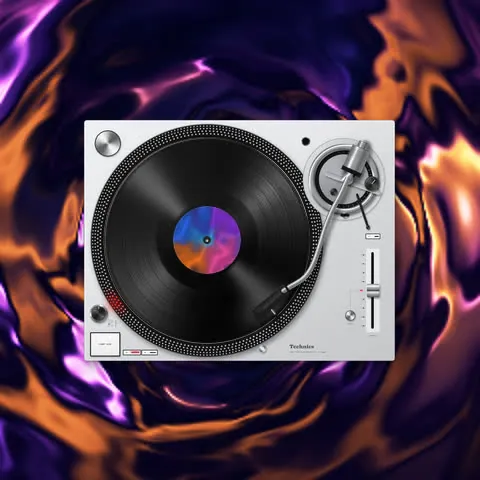
- 1
Add your song
Open the studio and drop your song, or tap Add your song. MP3, WAV, M4A, AAC, OGG, FLAC and AIFF work. If the file carries its artwork, the disc uses it. Otherwise open Media and tap Add beside Artwork: a square image of 1000 pixels or more stays sharp. The bar under the preview shows the waveform: drag its handles to pick the part of the song for your clip, up to 45 seconds on Free.
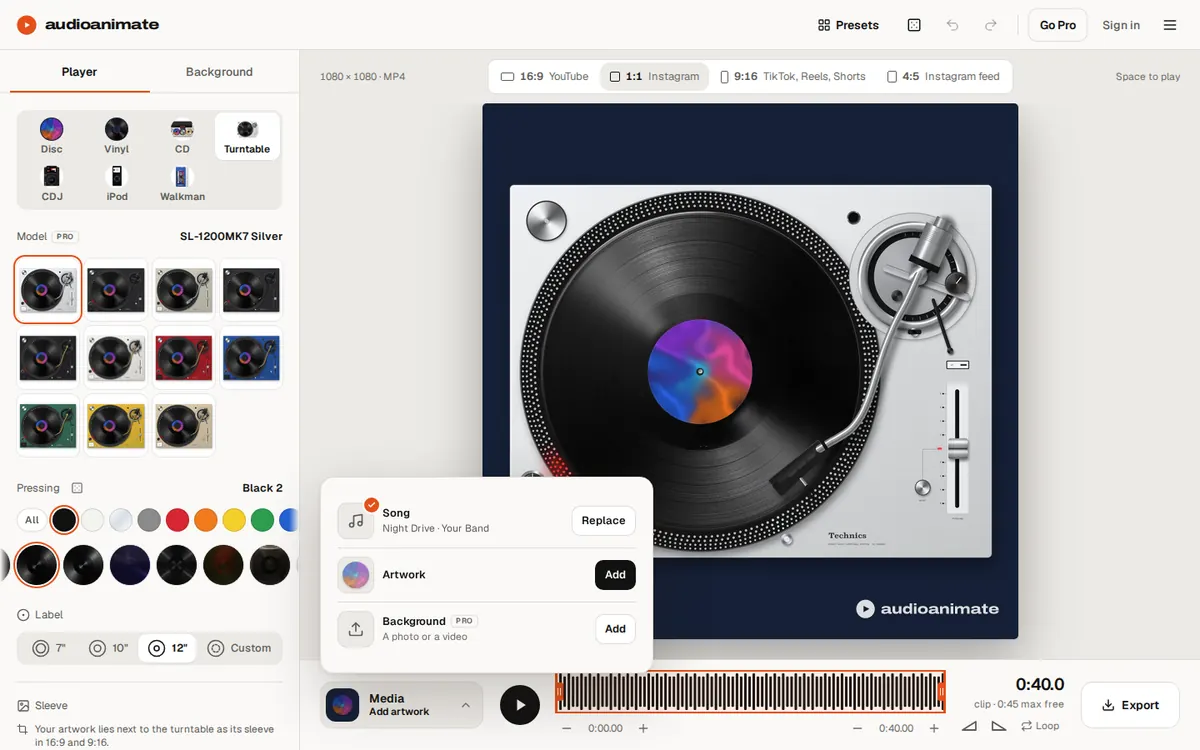
Media: the song, the artwork and an optional background. - 2
Pick the player
In Player, choose what your track spins on: a Disc in 19 shapes, a Vinyl with 434 pressings, a CD, a Turntable, a CDJ, an iPod or a Walkman. Each has its own models and settings below. Drag it on the preview to move it, pinch or scroll to resize it.
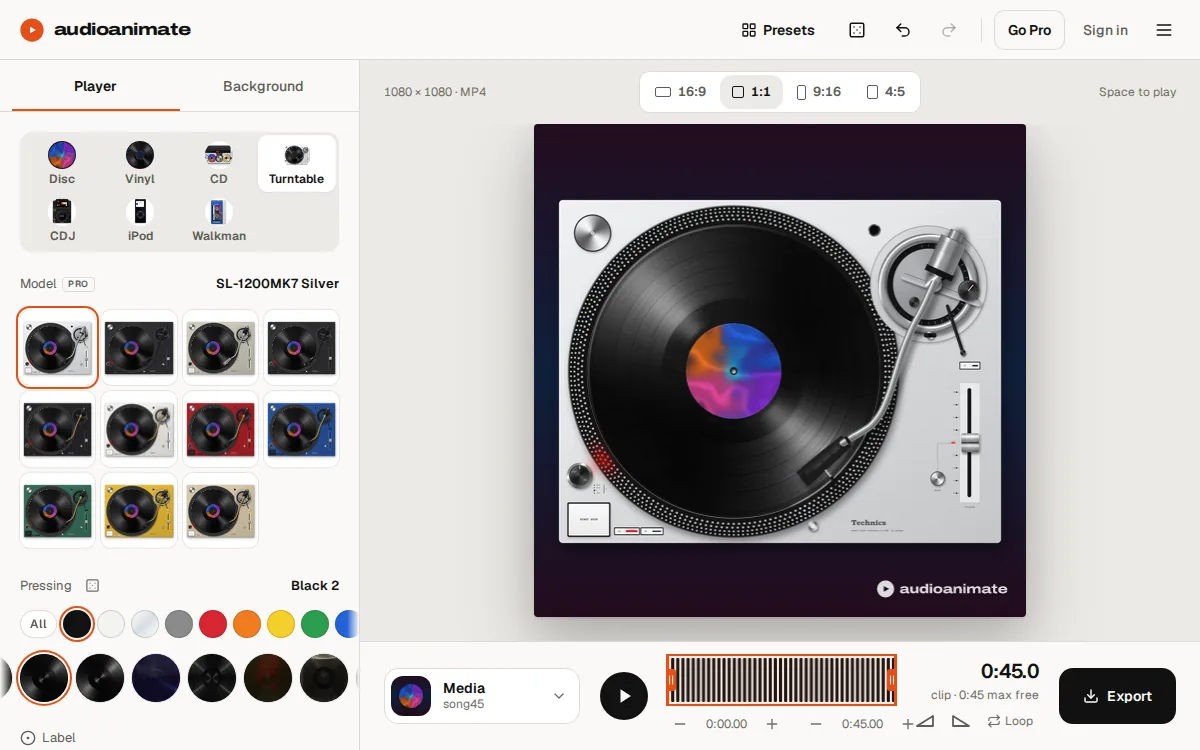
Player: the Technics models, then the pressing on the platter. - 3
Choose the background
In Background, Motion gives an animated background in the colors of your artwork, Color gives a plain one, File uses your own photo or video. Spotlight darkens the corners. Motion, File and Spotlight are Pro. A color is free.
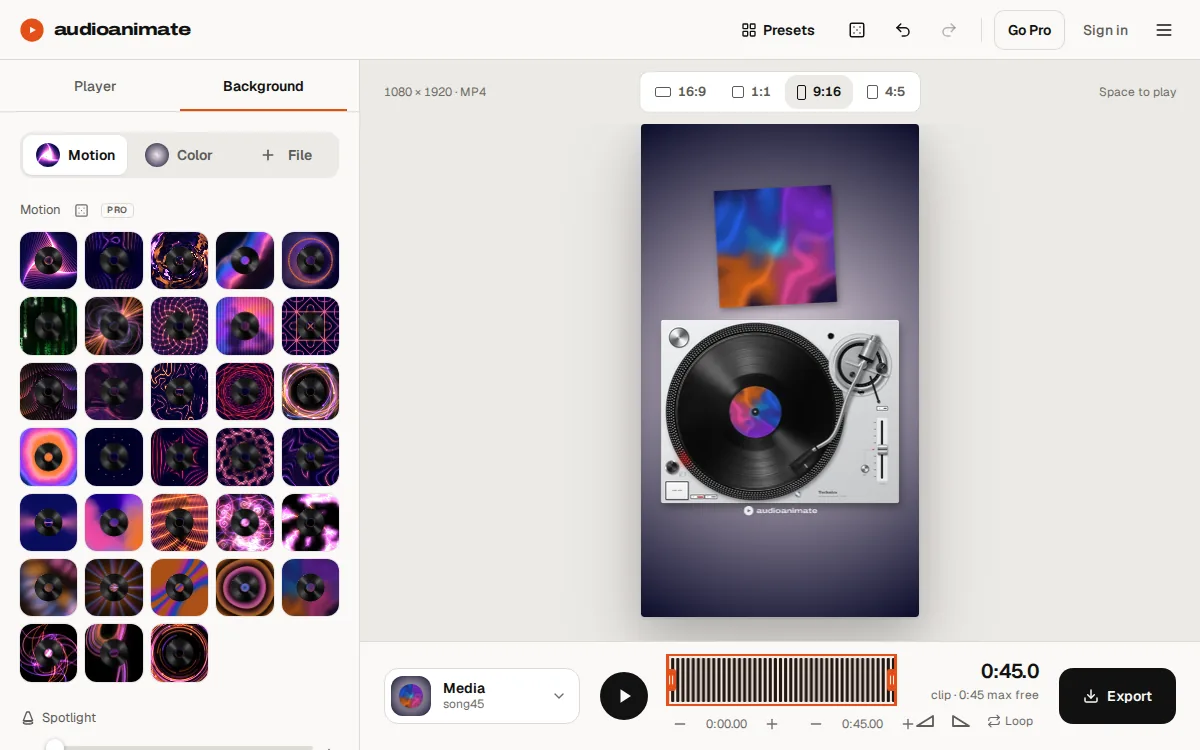
Background: 33 animated backgrounds, a color, or your own file. - 4
Set the format and export
Tap Export. Pick 9:16 for TikTok, Reels and Shorts, 1:1 or 4:5 for the Instagram feed, 16:9 for YouTube, or Canvas for Spotify. If your design uses something that is Pro, the panel lists it, with Use free settings to take it back in one tap.
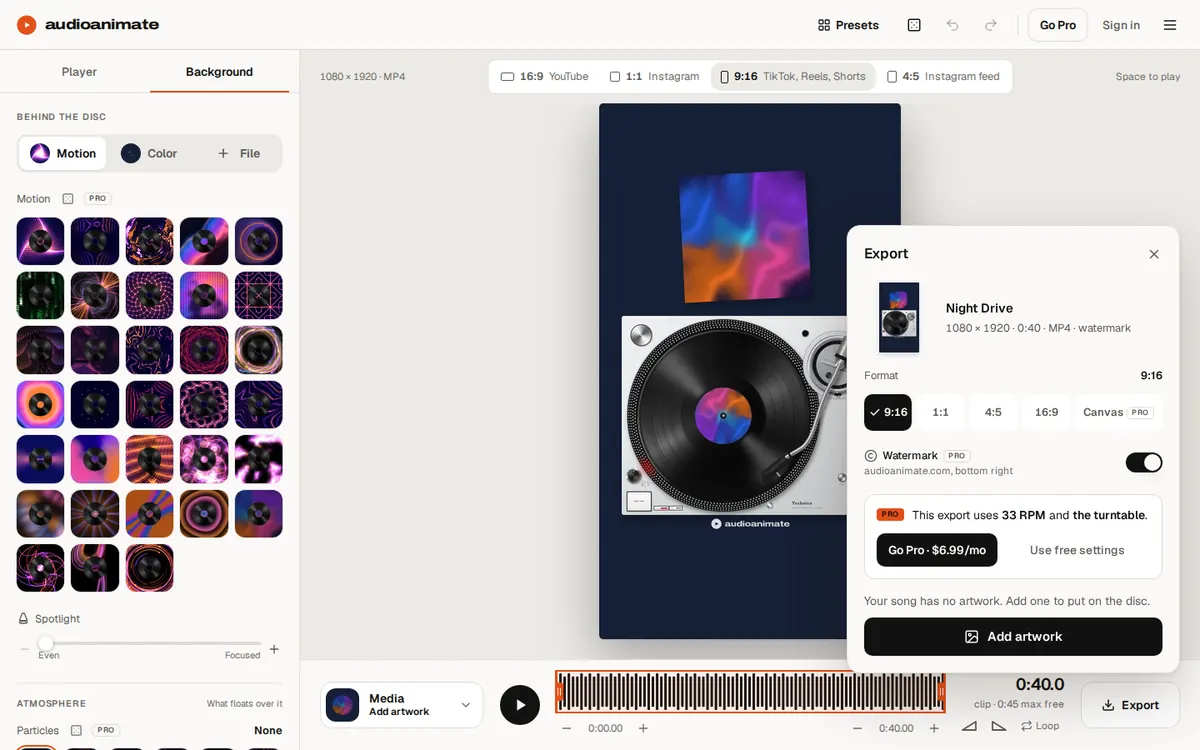
Export: formats, the watermark, and what this design needs Pro for. - 5
Create the video and save it
Sign in with Google or an email, then tap Create video. The video is exactly the preview, in Full HD. You can keep editing while it renders. On iPhone, tap Save to Photos when it is ready. On a computer the MP4 downloads itself.
What is free, what is Pro
Everything is open in the studio, so you can try any player, pressing or background before you decide. A free export is any disc shape or a black vinyl over a color, at the default size and speed, up to 45 seconds, with a watermark, one download a day. Anything else in the design is Pro, and the Export panel tells you which. See the plans: $6.99 a month, $49 a year, or $109 once.
Small things that save time
- Presets in the top bar: ideas drawn from your artwork, one tap each. The dice beside them changes everything except your files.
- Undo and Redo cover every setting, so try anything.
- Your song and design are kept in the browser on that device: close the tab and come back.
- On a phone, add the studio to your Home Screen and it opens like an app.
Where next
Making a Reel? The Reels guide picks the format and the clip. Planning a release? See how to promote it. Looking for a particular player: Technics, CDJ, iPod, Walkman.
Questions
- Do I need to install anything?
- No. The studio runs in your browser. On a phone you can add it to your Home Screen.
- Where do my files go?
- The preview runs in your browser. When you export, your song and cover are sent to our server to render the video.
- Can I come back to a design later?
- The studio keeps your song and settings in the browser on that device, so you can close it and return. Pro can also save presets.
Try it with your own track.
Drop a cover and a song in the studio. Everything is open to try, and nothing to pay until you export.